Discover how to improve Android security and privacy with 7 practical steps using built-in features, app controls, and smart habits. Protect your data, block threats, and enjoy peace of mind on your Android device in 2026.
How to Improve Android Security and Privacy
In an age where personal data is constantly at risk, taking control of your device’s security and privacy is more important than ever. Android offers powerful tools to safeguard your information from unauthorised access, tracking, and potential threats. Learning how to improve Android security and privacy empowers you to use your phone confidently while minimising vulnerabilities. This guide provides clear, effective steps to strengthen protection through settings adjustments, careful habits, and the latest features available in 2026.
Why Learn How to Improve Android Security and Privacy?
Your Android device stores sensitive information such as contacts, messages, photos, financial details, and location history. Weak settings can expose this data to apps, advertisers, or malicious actors. By understanding how to improve Android security and privacy, you reduce risks like data leaks, phishing, malware, and unwanted tracking.
Implementing these practices brings tangible benefits. You gain greater control over permissions, limit background activity, and benefit from enhanced features such as Advanced Protection and theft safeguards introduced in recent updates. Consistent effort creates a more secure digital life without sacrificing usability.
See how simple changes can make a significant difference to your device’s safety.
Choosing the Right Settings and Tools
Effective protection begins with the right configurations. Android includes built-in features that require only a few taps to activate.
Here are some essential elements:
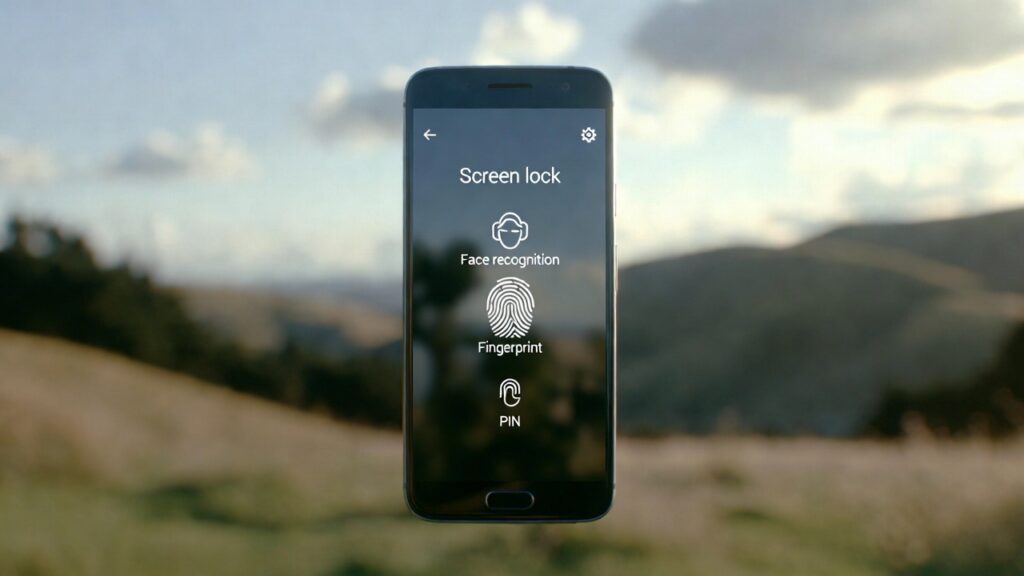
- Screen lock and biometrics: PIN, pattern, fingerprint, or face unlock for immediate access control.
- Permission manager: Granular control over app access to camera, microphone, location, and more.
- Google Play Protect: Automatic scanning for harmful apps.
- Advanced Protection: One-tap activation of the strongest security settings (available on Android 16 and higher).
- VPN and encryption: Built-in options or trusted apps to secure connections.
Review these regularly to ensure ongoing protection when learning how to improve Android security and privacy.
Explore these key security features to get started.
Step-by-Step Instructions
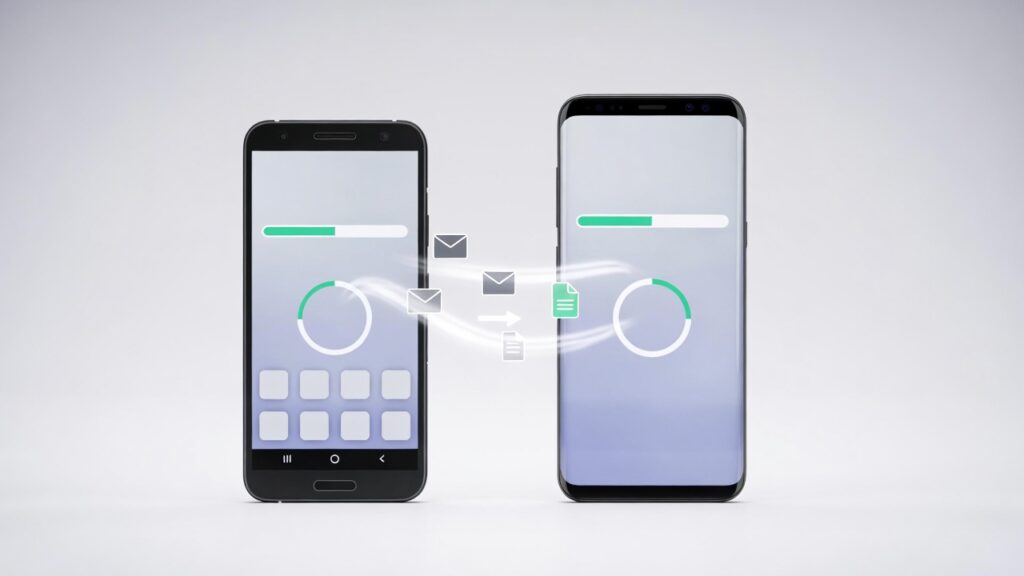
Follow these 7 straightforward steps to learn how to transfer data to a new Android phone effectively.
- Set a Strong Screen Lock: Go to Settings > Security & privacy > Device unlock. Choose a complex PIN, pattern, or enable biometrics. Require lock immediately after the screen turns off.
- Enable Advanced Protection: Navigate to Settings > Security & privacy > Advanced Protection (or similar on Android 16+). Toggle it on to block sideloading, unsafe links, spam, and insecure networks.
- Review and Restrict App Permissions: Open Settings > Security & privacy > Privacy controls > Permission manager. For each category (e.g., Camera, Location), revoke access from unnecessary apps and set to “Ask every time” where possible.
- Turn On Google Play Protect: In Settings > Security & privacy > App security > Google Play Protect, ensure scanning is active. Enable “Improve harmful app detection” for real-time alerts.
- Disable Unnecessary Tracking: Go to Settings > Google > All services > Privacy & security. Turn off personalised ads, location history, and web & app activity. Limit ad personalisation and disable usage diagnostics.
- Keep Software Updated: Check Settings > System > System update regularly. Install security patches promptly (e.g., monthly bulletins) and enable automatic updates for apps via Google Play Store.
- Use Additional Safeguards: Enable two-factor authentication for your Google Account. Install a reputable VPN for public Wi-Fi. Avoid sideloading apps and review permissions before installing anything new.
Additional Tips
- Regularly review installed apps and uninstall unused ones.
- Use strong, unique passwords managed by a secure app.
- Avoid public Wi-Fi without a VPN.
- Enable “Find My Device” for remote locking or wiping if lost.
- Be cautious with links and attachments in messages or emails.
- Consider privacy-focused browsers and search engines.
- Back up data securely to protect against ransomware or loss.
Conclusion
There you have it. By applying these recommendations, you can effectively learn how to improve Android security and privacy and protect your personal information with confidence. Start with the basics and build from there, reviewing settings periodically. What steps have you taken to secure your Android device? Share your experiences in the comments below.
FAQ
Q: How often should I check settings to improve Android security and privacy?
A: Review permissions and updates monthly, or after installing new apps.
Q: Is Advanced Protection suitable for everyday use?
A: Yes, though it restricts some features like sideloading; enable it if maximum protection is your priority.
Q: Do I need third-party antivirus?
A: Built-in tools like Play Protect suffice for most users; add reputable antivirus only if you face higher risks.
Q: How does updating help?
A: Updates patch vulnerabilities and add new protections, keeping your device safer.