Learn how to transfer data to a new Android phone with 7 simple steps using Google’s built-in tools. Move apps, photos, messages, contacts, and more quickly and securely during setup or afterwards for a smooth transition.
How to Transfer Data to a New Android Phone Seamlessly
Upgrading to a new Android phone is exciting, yet the thought of moving all your important data can feel daunting. Fortunately, Google provides straightforward, reliable methods to ensure nothing is left behind. Mastering how to transfer data to a new Android phone allows you to bring across apps, photos, videos, messages, contacts, calendar events, and settings with minimal effort. This guide explains the primary approaches, focusing on the official built-in tools that work across most Android devices running recent versions. With a few preparations and clear steps, transferring data to a new Android phone becomes a quick and stress-free process.
Why Learn How to Transfer Data to a New Android Phone?
Transferring data properly preserves your digital life without manual re-entry or loss. It copies essential items such as installed apps, call logs, SMS messages, device settings, and media files stored in accessible locations. Cloud-synced content like Google Photos, Drive files, contacts, and calendar events transfers automatically via your Google Account.
Understanding how to transfer data to a new Android phone saves time and reduces frustration. The process is secure, with encrypted transfers, and supports both wired and wireless options. Whether setting up immediately or later, transferring data to a new Android phone ensures continuity, letting you enjoy your new device right away.
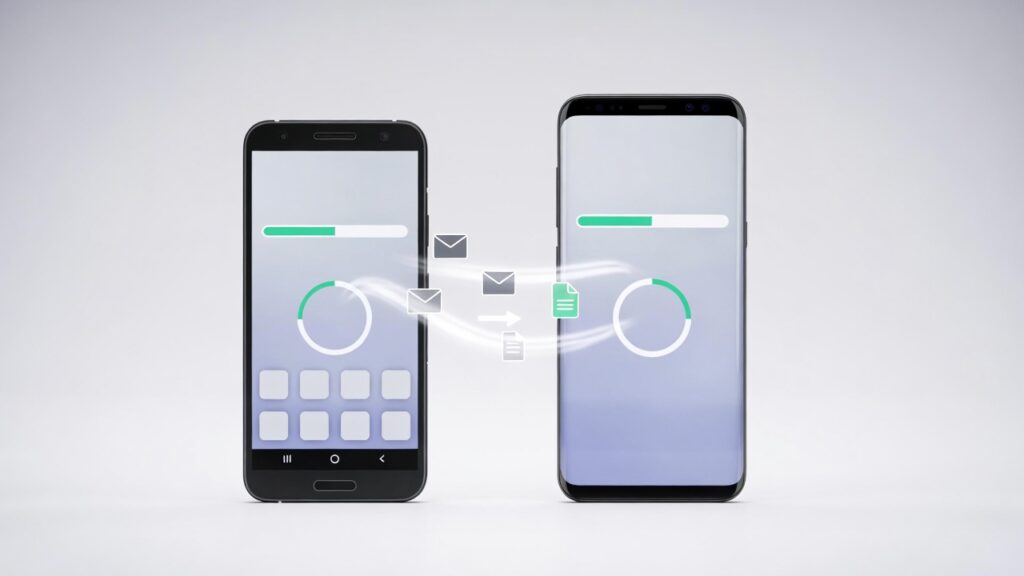
See how effortless switching can be when learning how to transfer data to a new Android phone.
Choosing the Right Method
Google offers flexible ways to handle transferring data to a new Android phone. The most complete transfer occurs during initial setup, but options exist afterwards.
Here are the main approaches:
- During setup (cable or wireless): Fastest and most comprehensive for direct copy.
- From Google backup: Ideal if the old device is unavailable or setup is complete.
- Manual sync for specific items: Useful for photos, music, or files not covered automatically.
Requirements include the same Google Account on both devices, Wi-Fi access, charged batteries, and (for cable) a compatible USB cable. These methods make transferring data to a new Android phone accessible to everyone.
Explore these reliable transfer options.
Step-by-Step Instructions
Follow these 7 straightforward steps to learn how to transfer data to a new Android phone effectively.
- Prepare Both Devices: Ensure the old phone is charged, unlocked, and connected to Wi-Fi. Back up data via Settings > System > Backup (or similar) to confirm everything is saved to your Google Account.
- Power On the New Phone: Turn on your new Android device and tap Start. Follow initial prompts for language, vision settings if needed, and connect to Wi-Fi.
- Choose to Copy Data: When asked, select the option to copy apps and data. For the most complete transfer, opt for this during setup.
- Select Transfer Method: If you have a USB-C cable, connect the devices as prompted for wired transfer (faster and often more reliable). Without a cable, tap No cable? OK and choose wireless transfer from another Android device.
- Follow On-Screen Prompts: On the old phone, approve the connection (scan QR code or enter code if required). Sign in with your Google Account if prompted, then select what to transfer (apps, messages, photos, etc.).
- Wait for Completion: The transfer may take minutes to hours depending on data volume. Keep both devices plugged in and nearby. The new phone will install apps and restore settings automatically.
- Finish Setup and Verify: Complete remaining setup steps (SIM activation, biometrics). Check key areas like photos in Google Photos, messages in Google Messages, and apps in the Play Store to confirm everything transferred successfully.
Additional Tips
- Charge both phones fully before starting to avoid interruptions.
- Use a high-quality USB-C cable for wired transfers to ensure stability.
- For photos and videos, enable Google Photos backup on the old device beforehand.
- If messages do not appear, open Google Messages and verify sync.
- Transfer music via streaming apps (YouTube Music, Spotify) by signing in.
- After transfer, factory reset the old phone if selling or recycling.
- For brand-specific tools (e.g., Samsung Smart Switch), use them alongside Google’s method for extra items.
Conclusion
There you have it. By following these recommendations, you can master how to transfer data to a new Android phone and start enjoying your upgrade without missing a beat. Take your time during setup, verify key items afterwards, and appreciate the seamless experience. Have you recently switched phones? Share your tips or any challenges in the comments below.
FAQ
Q: Does transferring data to a new Android phone work without Wi-Fi?
A: Wired transfer requires no internet after connection, but wireless needs Wi-Fi; backup restore uses data or Wi-Fi.
Q: What if I missed transferring during setup?
A: Use Google backup restore via Settings > System > Backup, or third-party apps for specific files.
Q: Will all apps transfer data to a new Android phone?
A: Most do, but some app data may require login or manual sync.
Q: Is transferring data to a new Android phone secure?
A: Yes, transfers are encrypted, and Google handles authentication safely.