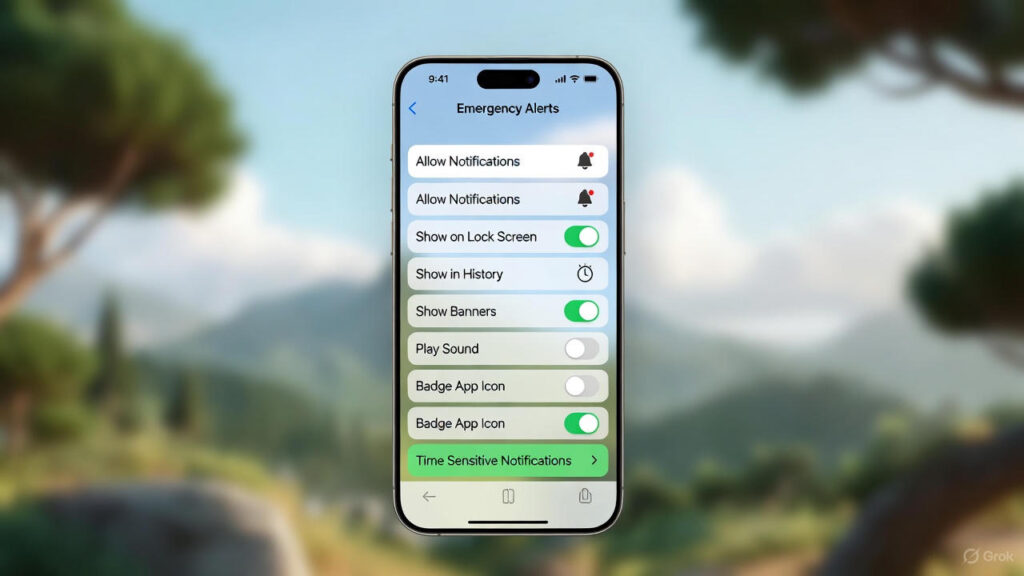
Learn how to turn off emergency alerts on iPhone quickly. Step-by-step instructions to disable government, severe and extreme alerts in Settings.
Why You Might Want to Turn Off Emergency Alerts
These alerts override Do Not Disturb and silent mode, playing a loud tone and vibration. They are sent by the government and cannot always be muted completely without disabling them.
Common reasons to turn them off:
- Avoiding disruption during work, sleep or events
- Reducing anxiety from test alerts
- Personal preference (e.g., for victims of abuse with hidden phones)
Remember: Turning them off means you might miss critical information in a real emergency.
How to Turn Off Emergency Alerts on iPhone -6 Easy Steps
- Open the Settings app on your iPhone (grey gear icon).
- Scroll down and tap Notifications.
- Scroll all the way to the bottom of the Notifications screen.
- Look for the section called Government Alerts (it may say Emergency Alerts in some regions).
- You will see toggles for:
- Extreme Alerts (or Extreme Threats) – for life-threatening situations
- Severe Alerts (or Severe Threats) – for serious but less immediate dangers
- AMBER Alerts (child abduction alerts, if shown in your region)
- Possibly Public Safety Alerts or Test Alerts
6. Toggle off the ones you want to disable (they turn from green to grey).
Important Notes for UK Users
- In the UK, the main options are usually Severe Alerts and Extreme Alerts.
- Some alerts (like certain national ones) cannot be turned off in all regions.
- Test alerts (sent periodically by the government) will also stop if you disable these.
- If you do not see the options, your iPhone might be set to a region without customisable alerts, or you need to update iOS.
To check for updates: Settings > General > Software Update.
How to Turn Alerts Back On
Just follow the same steps and toggle the switches back to green. It is a good idea to re-enable them if you are in an area prone to severe weather or emergencies.
FAQ
Q: Will turning off alerts affect other notifications?
A: No, only government/emergency alerts are affected. Regular app notifications stay the same.
Q: Can I silence the sound without turning them off completely?
A: Unfortunately, no – these alerts bypass volume and Do Not Disturb settings for safety reasons.
Q: Do these steps work on iPad or Apple Watch?
A: Similar settings exist, but alerts are primarily for iPhone. Check Notifications on your other devices.
Q: What if I miss an important alert?
A: Consider keeping them on, or check news apps/BBC for updates during bad weather.
Q: Why did this become a top search in 2025?
A: With more frequent tests and real alerts (e.g., floods, storms), many UK users looked for ways to manage them.
Final Thoughts
Turning off emergency alerts on your iPhone is a straightforward process that takes just a minute and can significantly reduce unexpected disruptions in your daily life. Whether the loud siren-like tones interrupt important meetings, disturb your sleep, or simply cause unnecessary stress during routine tests, these steps put you back in control of your notifications.
That said, it’s worth pausing to consider why these alerts exist in the first place. In the UK and many other regions, government alerts are a critical tool for public safety, providing timely warnings about severe weather, floods, fires, terrorist threats, or other emergencies that could save lives. Authorities and experts strongly recommend keeping them enabled, as disabling them means you might miss vital information when it matters most.
If you’ve turned them off and later decide you’d prefer the added layer of protection—especially if living in an area prone to extreme weather or other risks—re-enabling is equally simple. Ultimately, the choice is yours, but balancing convenience with safety is key.
Stay informed, stay prepared, and enjoy a quieter iPhone experience if that’s what you need! 📱