Learn how to stop a laptop overheating with this easy UK guide. Follow simple steps to clean cooling vents, lower CPU temps, and protect your device.
How to Stop a Laptop Overheating
A hot, noisy computer is more than just an annoyance; learning how to stop a laptop overheating is essential for preventing permanent hardware damage, sudden system crashes, and severe performance throttling. Modern laptops pack powerful processors into increasingly thin chassis, leaving very little room for heat dissipation when dust builds up or cooling vents become blocked.
When internal temperatures spike, your laptop automatically slows down its processor (thermal throttling) or shuts down entirely to prevent melting sensitive components. By making a few minor adjustments to your setup and maintaining clean airflow, you can discover how to stop a laptop overheating while keeping your machine running cool and quiet. Here is a straightforward UK guide to fixing a hot system.
1. Elevate Your Laptop on a Hard, Flat Surface
Placing your laptop on soft surfaces like bedding, sofas, or cushions blocks intake vents located underneath the chassis, trapping hot air inside instantly.
Keep air flowing freely with these setup tweaks:
- Use a flat desk: Always work on a solid wooden or plastic desk to ensure built-in rubber feet elevate the laptop enough for intake vents to draw cool air.
- Propping up the back: Place a small object (like a coin, book, or stand) under the back edge of your laptop to increase clearance under the intake fans.
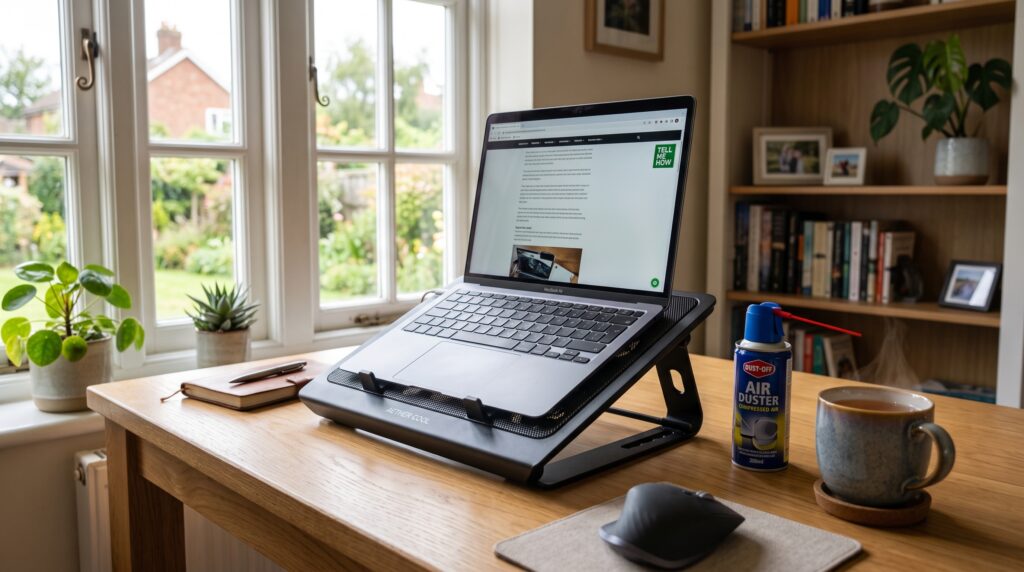
- Invest in a laptop stand: A mesh or aluminium laptop stand elevates the device to eye level while offering a great passive approach for how to stop a laptop overheating.
2. Clear Dust and Debris from Fans and Vents
Over time, dust bunnies and pet hair gather inside cooling fans and heatsink fins, creating a thick thermal blanket that prevents heat from escaping.
Safely clean your cooling system with these steps:
- Power down completely: Turn off your laptop, unplug the charger, and disconnect all external cables.
- Locate exhaust vents: Find the cooling grilles along the sides, back, or bottom panel of your laptop.
- Use compressed air: Hold a can of compressed air at an angle and deliver short bursts into the vents to blow out trapped dust clumps.
3. Adjust Power Settings and Limit CPU Usage
Running high-performance power profiles forces your processor to run at maximum clock speeds constantly, generating unnecessary internal heat even during basic tasks. Tuning these settings is a proven method when discovering how to stop a laptop overheating.
Reduce thermal stress using built-in system tools:
- Switch to Power Saver mode: Change your power mode to Best Power Efficiency (Windows) or turn on Low Power Mode (Mac) to limit aggressive CPU boosting.
- Cap maximum processor state: Navigate to advanced Windows power options and set Maximum processor state to 95%–99% to prevent the chip from over-volting into hot turbo modes.
- Close heavy background apps: Use Task Manager or Activity Monitor to identify and close background apps using excessive CPU.
4. Use a Dedicated Laptop Cooling Pad
If you regularly perform intensive tasks like video editing, 3D rendering, or gaming, passive ventilation might not be enough to control temperatures. Adding active cooling is an effective step when researching how to stop a laptop overheating.
Boost thermal performance with external cooling:
- Active cooling pads: Purchase a laptop cooling pad featuring built-in USB-powered fans that blow cool air directly into your device’s intake vents.
- Aluminium heat sinks: Choose metal cooling stands that act as passive heat sinks, absorbing excess warmth away from the lower casing.
5. Repaste the Thermal Compound (Advanced Fix)
If your laptop is over 3–4 years old and continues overheating despite clean vents, the thermal paste connecting the CPU to the copper heatsink has likely dried up and cracked. Replacing this dried material is a crucial advanced technique in learning how to stop a laptop overheating.
Restore thermal transfer with a paste refresh:
- Remove the bottom casing: Unscrew the back panel to access the internal motherboard and cooling assembly.
- Clean old thermal paste: Use isopropyl alcohol (90%+) and a lint-free cloth to gently wipe away hardened grey paste from the CPU and GPU dies.
- Apply fresh paste: Apply a pea-sized drop of high-quality thermal compound (like Arctic MX-4) before reattaching the heatsink firmly.
Frequently Asked Questions
Here are everyday questions users ask about laptop thermal management.
1. How hot is too hot for a laptop CPU?
Idle temperatures should range between 35°C and 55°C. Under heavy workloads, temperatures between 70°C and 85°C are normal, but sustained temperatures above 90°C–95°C mean your laptop is overheating and risks long-term component degradation.
2. Why does my laptop fan sound like a jet engine?
Your system firmware automatically ramps up cooling fan speeds to 100% when internal temperature sensors detect high heat. If your fan runs loudly even when doing basic tasks like web browsing, it indicates blocked air vents or heavy background software usage.
3. Can overheating ruin a laptop battery?
Yes! Lithium-ion batteries degrade rapidly when exposed to excess heat. Sustained high temperatures cause permanent capacity loss, shorter runtimes, and in extreme cases, battery swelling.
Final Thoughts
Understanding how to stop a laptop overheating keeps your machine running quietly, smoothly, and reliably. By elevating your laptop on a hard surface, routinely clearing dust out of intake vents, tuning your power profiles, and keeping background software lightweight, you can easily protect your hardware from heat damage.