Learn how to use a laptop as a second monitor with this simple guide. Connect Windows or Mac laptops wirelessly or via display cables in minutes.
How to Use a Laptop as a Second Monitor
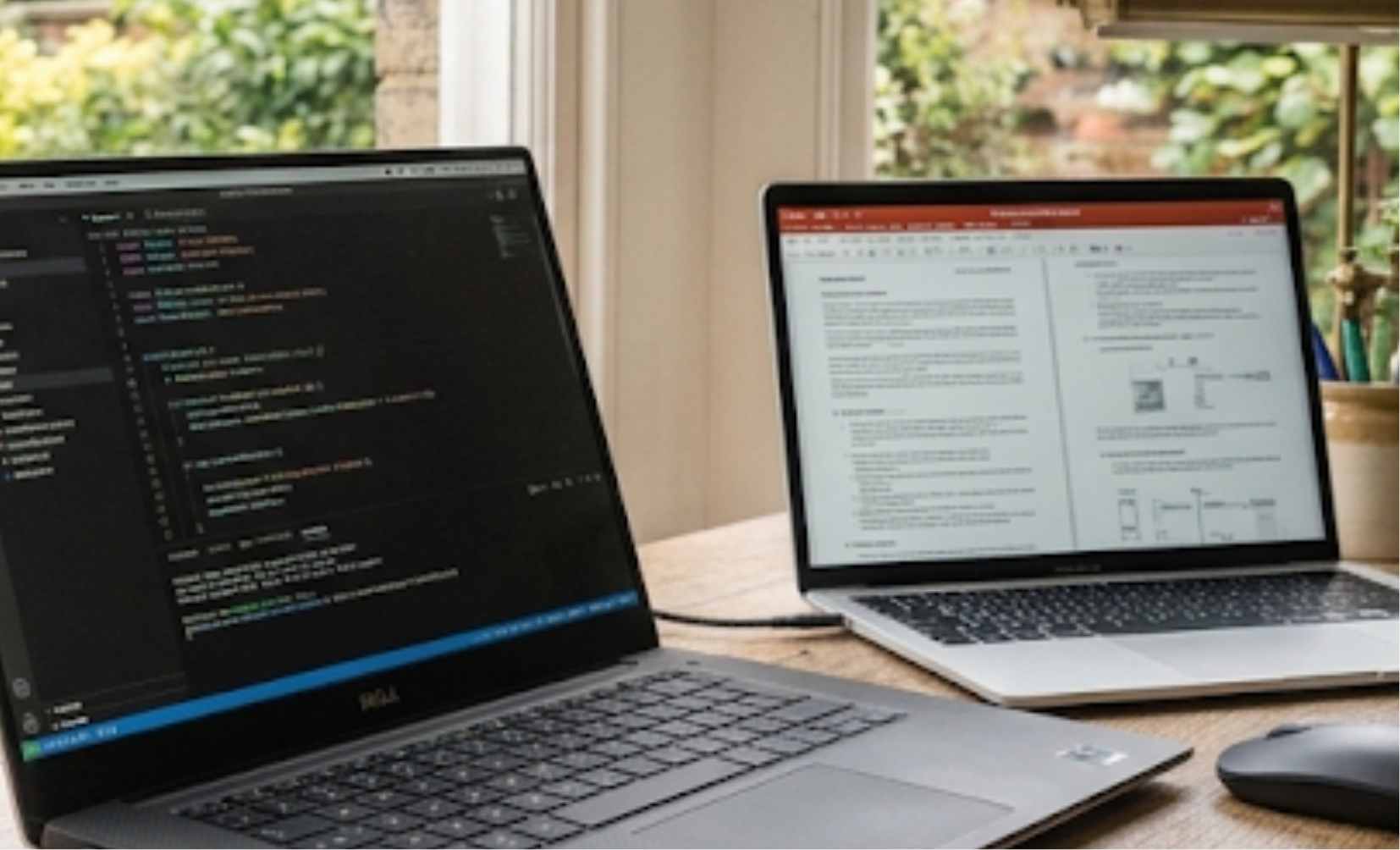
Adding a second screen to your workstation boosts productivity, makes multitasking easier, and cleans up your desktop layout. Learning how to use a laptop as a second monitor lets you repurpose a spare laptop or expand your mobile display without spending money on a standalone computer screen.
Whether you want to project wirelessly using built-in operating system features or use third-party tools for a low-latency wired connection, configuring a dual-screen setup is quick and straightforward. Here is your complete guide on how to use a laptop as a second monitor.
1. Use Built-In Wireless Projection (Windows to Windows)
If both of your devices run Windows 10 or Windows 11, you can use the built-in Miracast feature to stream your main display to a secondary laptop over Wi-Fi without any physical cables.
Connect two Windows devices with these steps:
- Enable projection on the second laptop: Go to Settings > System > Projecting to this PC. Select Available everywhere and choose your PIN settings.
- Install the feature if needed: If options are greyed out, click Optional features > Add a feature, search for Wireless Display, and install it.
- Connect from your primary PC: On your main computer, press
Win + Kto open the Cast menu. Select your second laptop from the list of available devices. - Adjust display settings: Press
Win + Pand select Extend to use the second screen as an expanded workspace instead of a mirror.
2. Connect an iPad or Mac using Apple Sidecar or AirPlay
If you are inside the Apple ecosystem, learning how to use a laptop as a second monitor (or using an iPad alongside a MacBook) takes advantage of Apple’s seamless built-in wireless integration.
Extend your Mac display using these options:
- Use AirPlay to a Mac: On macOS Monterey or later, open System Settings > Displays on your primary Mac, click the + (Plus) dropdown menu, and select your secondary Mac under Link Keyboard and Mouse or Mirror or Extend to.
- Use Sidecar for iPad: Click Control Centre on your Mac, select Display, and pick your iPad from the list to instantly turn it into an external screen with Touch ID and Apple Pencil support.
3. Use Third-Party Software for Cross-Platform Setups
When connecting different operating systems, such as using a Windows laptop alongside a Mac, or requiring a high-speed wired USB connection, third-party applications offer high performance and low lag.
Set up cross-platform screens with these popular tools:
- Spacedesk (Free): Outstanding free software for Windows. Install the driver on your primary PC and open the Spacedesk app or web viewer on your secondary laptop, tablet, or phone over Wi-Fi.
- Duet Display (Paid): Developed by former Apple engineers, Duet Display provides lag-free wired connections via USB cables between Windows, Mac, iOS, and Android devices.
- Deskreen (Open-Source): Turns any device with a web browser into a second screen over Wi-Fi, perfect for Linux, Mac, and Windows users.
4. Use a Capture Card for a Low-Latency Wired Connection
Software solutions over Wi-Fi work brilliantly for productivity tasks, but if you need a zero-lag connection for gaming or video editing, a hardware capture card is required when discovering how to use a laptop as a second monitor.
Set up a physical wired connection using these steps:
- Obtain an HDMI-to-USB capture card: Buy an inexpensive USB video capture card (often available online for under £15 / $15).
- Connect your hardware: Plug the HDMI cable into the video output port of your main computer, and plug the USB capture card into a USB port on your secondary laptop.
- Open camera software: On your secondary laptop, open the native Camera app or OBS Studio and select the capture card as your camera input to display your main PC screen in real time.
Frequently Asked Questions
Here are everyday questions users ask about setting up dual screens.
1. Can I use an HDMI cable directly between two laptops?
No. Nearly all standard laptop HDMI ports are HDMI-out only, meaning they transmit video signals outward to monitors rather than receiving incoming signals. To send video into a laptop via HDMI, you must use a USB capture card accessory.
2. Is wireless screen extension laggy?
Wireless connections depend heavily on the strength of your local Wi-Fi network. For typing, web browsing, and document editing, wireless methods like Miracast or Spacedesk are smooth. For high-frame-rate gaming or precise colour work, a wired tool like Duet Display or a capture card is recommended.
3. Can I control both screens with one mouse and keyboard?
Yes! Built-in tools like Apple’s Universal Control or Microsoft’s Mouse Without Borders allow your primary keyboard and mouse to glide seamlessly across screens between two independent laptops without extending the display signal itself.
Final Thoughts
Understanding how to use a laptop as a second monitor gives you a cost-effective, portable multi-screen workspace wherever you work. Whether you connect wirelessly via Windows Miracast, stream cross-platform using Spacedesk, or set up a capture card, expanding your desktop area enhances productivity and workflow efficiency.