
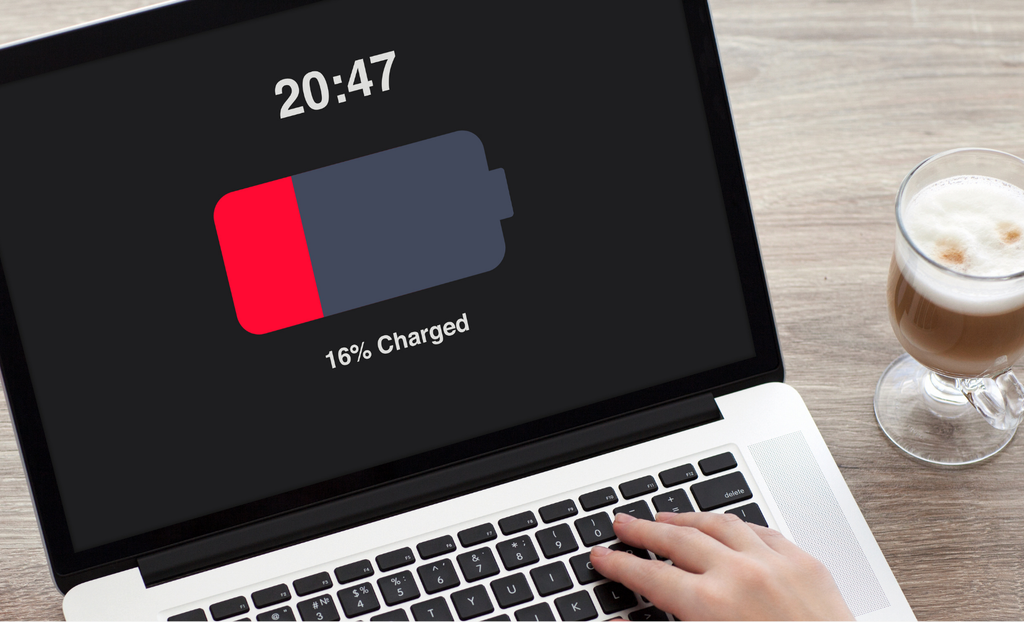
Learn how to calibrate a laptop battery with this step-by-step guide. Recalibrate your power meter, fix inaccurate battery percentages, and optimise life.
How to Calibrate a Laptop Battery
If your laptop suddenly shuts down at 20% or jumps from 50% to 10% in a matter of minutes, learning how to calibrate a laptop battery can resolve these frustrating issues. Over time, your laptop’s operating system (whether Windows or macOS) can lose track of the battery’s actual remaining capacity, leading to inaccurate charge readings even if the hardware itself is still healthy.
Calibrating your battery resets the internal power meter so your software accurately reflects your true battery status. Here is a safe, step-by-step guide on how to calibrate a laptop battery to ensure accurate percentage readings and prevent unexpected shutdowns.
1. Adjust Your Laptop Power Management Settings
Before starting the physical calibration process, you need to change your power settings so your laptop does not automatically sleep or hibernate while draining.
Adjust your settings with these steps:
- Open power options: On Windows, go to Settings > System > Power & battery (or Control Panel > Power Options). On Mac, open System Settings > Battery.
- Prevent sleep mode: Set your screen to turn off after 5–10 minutes, but set Sleep or Put computer to sleep when inactive to Never.
- Set critical battery action: Under advanced power settings, set the critical battery action to Hibernate (or set the critical level to 5%) so your device saves your work before shutting down safely.
2. Charge the Battery to 100% and Hold
The first phase when discovering how to calibrate a laptop battery is topping off the battery to its absolute maximum capacity.
Charge your device effectively with these steps:
- Plug in your charger: Connect your power cable and charge the laptop until the battery meter reaches 100%.
- Keep it plugged in for 2 hours: Once it reaches 100%, leave the charger plugged in for at least 1 to 2 hours. This allows the battery to cool down from the charge cycle and ensures the power meter recognises the full charge state.
- Use normally: You can continue using your laptop normally while it remains plugged in during this resting period.
3. Drain the Battery Completely Until It Shuts Down
Next, you need to discharge the battery completely so the operating system can measure the bottom limit of its capacity.
Discharge your laptop using these steps:
- Unplug the power cable: Disconnect the charger and let the laptop run on battery power.
- Drain the battery: Use the computer for general tasks, streaming, or browsing until the battery is almost empty.
- Let it shut down automatically: Keep the laptop running until it automatically hibernates or turns off completely due to low power.
- Let it rest for 3 to 5 hours: Leave the laptop powered off and unplugged for a few hours to ensure the charge drops to absolute zero.
4. Recharge to 100% Without Interruption
The final step when learning how to calibrate a laptop battery is recharging the battery from zero to full in one continuous cycle.
Complete the calibration with these steps:
- Plug the charger back in: Connect your power cable to the laptop.
- Charge uninterrupted to 100%: Allow the laptop to charge continuously until it reaches 100%. You can use the laptop while it charges, but keeping it turned off speeds up the process.
- Restore power settings: Once fully charged, go back to your power management settings and re-enable your usual sleep and hibernate timers.
Frequently Asked Questions
Here are everyday questions users ask about maintaining laptop battery health.
1. How often should I calibrate my laptop battery?
Calibrating your battery every 2 to 3 months is generally sufficient. If you rarely use your laptop on battery power or keep it plugged in constantly, calibrating quarterly helps maintain accurate percentage readings.
2. Does calibrating a laptop battery increase its physical life?
No. Calibrating does not magically restore lost physical battery capacity or chemical health. Instead, it recalibrates the digital power meter so your software accurately displays the exact amount of charge your battery can currently hold.
3. What if my laptop manufacturer has built-in calibration software?
Many brands (such as HP, Lenovo, ASUS, and MSI) include proprietary battery diagnostic tools within their pre-installed support apps. If your laptop offers an automated Battery Calibration Tool, use that utility, as it automates the entire charge/discharge cycle for you.
Final Thoughts
Understanding how to calibrate a laptop battery is a simple, non-invasive maintenance task that keeps your device’s power readings accurate. Once you know how to calibrate a laptop battery, you can prevent unexpected shutdowns, track true remaining charge, and manage your mobile workflow with confidence.