
Discover how to clear space on a laptop with this simple UK guide. Follow easy steps to remove clutter, clean temporary files, and boost performance.
How to Clear Space on a Laptop
Running out of drive capacity is a common headache, but knowing how to clear space on a laptop can quickly revive a sluggish system without buying expensive external drives. Whether you are getting low storage warnings or struggling to download new files, a cluttered hard drive slows down your operating system and limits everyday productivity.
Freeing up storage isn’t just about deleting old photos; it involves clearing temporary system caches, uninstalling bloated software, and moving large archives off your local drive. By following a structured cleanup routine, you can safely reclaim gigabytes of storage on both Windows and Mac devices. Here is your friendly guide to clearing laptop clutter.
1. Use Built-In Disk Cleanup and Storage Tools
Both Windows and macOS feature native tools designed to automatically identify unnecessary system files and purge storage hogs. Using these built-in utilities is the safest starting point when exploring how to clear space on a laptop.
Run built-in utility checks with these simple steps:
- Windows Storage Sense: Head to
Settings > System > Storage, toggle on Storage Sense, and click Run Storage Sense now to automatically delete temporary system files. - Mac Storage Management: Click the Apple menu, go to
System Settings > General > Storage, and review recommendations like Empty Bin Automatically or Optimise Storage. - Legacy Disk Cleanup (Windows): Search for “Disk Cleanup” in your taskbar, select your primary drive (C:), and click Clean up system files to safely wipe old Windows Update caches.
2. Empty the Trash, Recycle Bin, and Download Folders
It sounds basic, but deleted files remain on your storage drive until you explicitly purge them. Your Downloads folder is usually the largest collection point for forgotten installers and heavy documents.
Clear out leftover file archives with these actions:
- Empty your bin: Right-click the Recycle Bin (Windows) or Trash (Mac) and select Empty Bin to immediately release reclaimed space.
- Audit your Downloads folder: Sort files by size, delete old installers (.exe, .dmg, or .zip files), and move kept documents into proper folder structures.
- Clean browser downloads: Clear completed installer downloads directly within your web browser settings.
3. Uninstall Unused Apps and Software Programs
Over time, installed applications, trial software, and heavy games accumulate and consume substantial drive capacity. Removing software you no longer use is essential when learning how to clear space on a laptop.
Remove bloated software with these steps:
- Windows App Manager: Go to
Settings > Apps > Installed apps, sort by Size, and select Uninstall on large programs or games you rarely launch. - Mac Application Cleanup: Open Finder > Applications, drag unused software to the Trash, or use dedicated uninstallers to remove associated application support files.
- Check for bloatware: Remove pre-installed manufacturer software trial tools that offer little value.
4. Offload Large Files to Cloud Storage or External Drives
High-resolution videos, raw photo libraries, and completed project folders take up valuable local real estate. Offloading archived data off your main drive is a great tactic when figuring out how to clear space on a laptop.
Manage large media collections using these options:
- Enable Cloud Files On-Demand: Use OneDrive, iCloud, or Google Drive with “Files On-Demand” enabled so files stay visible locally without taking up physical storage space until opened.
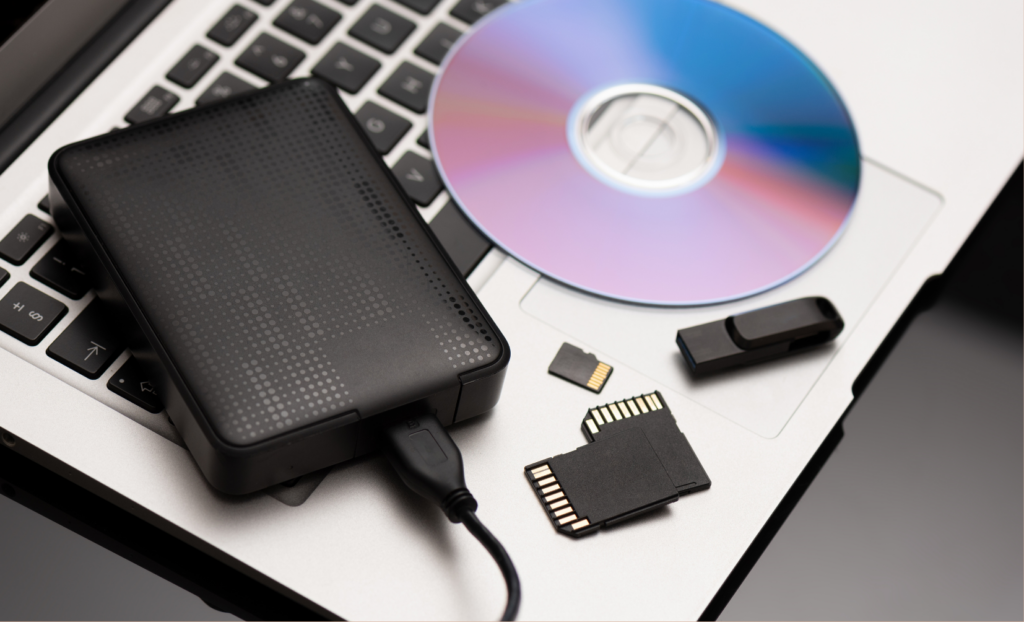
- Use an external SSD: Copy large video files, photo backups, and heavy media libraries onto an external portable solid-state drive (SSD) or USB stick.
- Delete local streaming downloads: Remove offline saved content from apps like Netflix, Spotify, or BBC iPlayer once you have finished watching or listening.
5. Clear System Caches and Temporary Files
Web browsers and productivity apps store temporary data (caches) to speed up loading times, but these temporary stores grow massively over months of regular use.
Purge unnecessary temporary caches with these steps:
- Clear web browser cache: Open your browser settings (Chrome, Edge, or Safari) and clear cached images and temporary site files.
- Delete Windows Temp files: Press
Win + R, type%temp%, hit Enter, and delete the non-essential temporary system files inside the folder. - Clear application caches: Purge old cache folders inside Adobe, Teams, or Slack settings if those apps consume excessive drive space.
Frequently Asked Questions
Here are common questions users ask when clearing storage capacity.
1. How much free space should I keep on my laptop drive?
It is best practice to keep at least 15% to 20% of your total drive space free. Operating systems rely on free drive capacity for virtual memory (swap space), system updates, and background file indexing.
2. Is it safe to delete the “System Data” or “Other” storage category?
Yes, but you should use built-in system tools rather than deleting system files manually. Categories like “Other” or “System Data” contain temporary caches, system logs, app data, and disk images that built-in utilities can safely clear for you.
3. Will clearing space make my laptop run faster?
Yes! When a hard drive or SSD is nearly full (over 90% capacity), the operating system struggles to manage temporary system tasks, leading to noticeable slowdowns, app freezes, and slow boot times.
Final Thoughts
Knowing how to clear space on a laptop keeps your system fast, reliable, and organised. By combining built-in storage management tools, clearing temporary caches, offloading media to cloud storage, and uninstalling unused programs, you can easily reclaim gigabytes of storage space and extend the life of your device.