
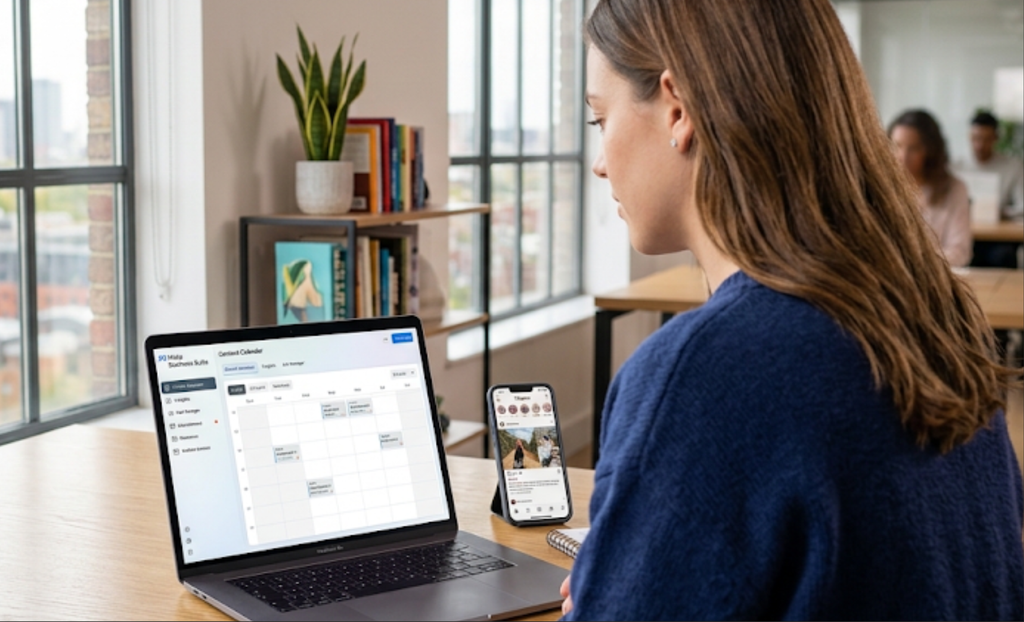
Learn how to set up a Meta Business Suite account with this step-by-step UK guide. Connect your Facebook and Instagram pages to manage posts and ads.
How to Set Up a Meta Business Suite Account
Managing a social media presence across multiple platforms can quickly become overwhelming, but learning how to set up a Meta Business Suite account brings your Facebook Pages, Instagram profiles, messaging, and ad campaigns into a single unified dashboard. Meta Business Suite is a free, centralised management hub designed to help businesses schedule content, track performance insights, and respond to customer messages without constantly switching apps.
Whether you are launching a new online business or seeking a more efficient way to manage your existing channels, mastering how to set up a Meta Business Suite account takes just a few minutes. Here is your step-by-step guide.
1. Prepare Your Personal Facebook Profile
Meta Business Suite requires you to log in with a personal Facebook account to verify your identity and grant administrative ownership of your business assets.
Before you begin setting up your account, keep these points in mind:
- Your personal information stays private: Followers and customers on your business page will never see your personal profile or personal details.
- Use a secure account: Ensure your personal Facebook profile has two-factor authentication enabled to protect your business assets.
- Verify admin permissions: Confirm that your personal account holds full administrative access to any existing Facebook Pages you intend to manage.
2. Navigate to Meta Business Suite and Create a Portfolio
Setting up your central Business Account (portfolio) creates the main umbrella workspace that holds all your brand pages, ad accounts, and team permissions.
Create your business portfolio using these steps:
- Visit the web portal: Go to business.facebook.com on a desktop web browser.
- Log in: Enter your personal Facebook login credentials.
- Click Create Account: Select the Create Account or Create a Business Account button.
- Enter your business details: Type in your official business name, your full name, and your business email address, then click Submit.
- Confirm your email: Check your email inbox for a verification message from Meta and click Confirm Now.
3. Connect or Create Your Facebook Page
Once your portfolio is established, you need to connect your Facebook Business Page to the suite.
Link your Facebook presence using these options when figuring out how to set up a Meta Business Suite account:
- Add an existing page: Navigate to Settings > Business Assets (or Pages), click Add Assets, and choose Facebook Page to claim a page you already own.
- Create a brand-new page: If you do not have a page yet, select Create a new Facebook Page, choose your business category, and enter your page name.
- Request page access: If you are managing social media for a client, choose Request access to a Page and enter their page name or URL.
4. Link Your Professional Instagram Account
To schedule posts and cross-publish content across both platforms simultaneously, you must link your Instagram account.
Connect Instagram to your suite using these steps:
- Convert to a Professional Account: Ensure your Instagram profile is set to a Business or Creator account inside the Instagram app settings.
- Access Meta settings: In Meta Business Suite, go to Settings in the left sidebar and select Business Assets or Instagram Accounts.
- Claim Instagram account: Click Add Assets (or Add Instagram Account), review the terms, and click Claim Instagram Account.
- Log in to Instagram: Enter your Instagram username and password to confirm the connection.
5. Add Team Members and Assign Role Permissions
If you work with partners, virtual assistants, or social media managers, you can delegate tasks without sharing your personal login passwords. Learning how to set up a Meta Business Suite account correctly ensures team collaboration remains safe and organised.
Manage access securely with these steps:
- Go to People settings: In your sidebar menu, click Settings > Users > People.
- Invite team members: Click Add People and enter the individual’s work email address.
- Select access levels: Choose between Basic (Employee) access or Full Control (Admin) access depending on their responsibilities.
- Assign specific assets: Select which Facebook Pages, Instagram accounts, or ad accounts they are allowed to manage, then click Send Request.
Frequently Asked Questions
Here are everyday questions business owners ask about setting up the platform.
1. Is Meta Business Suite completely free to use?
Yes! Meta Business Suite is a completely free tool provided by Meta. You only pay if you choose to run paid advertising campaigns or boost specific posts.
2. What is the difference between Meta Business Suite and Meta Ads Manager?
Meta Business Suite focuses on organic management, such as publishing posts, scheduling stories, viewing basic analytics, and managing your unified inbox. Meta Ads Manager is a specialised tool within the same platform dedicated specifically to creating, running, and tracking paid advertising campaigns.
3. Do I need technical skills to know how to set up a Meta Business Suite account?
Not at all! The setup process is designed to be user-friendly. Following a simple step-by-step checklist lets anyone complete the setup in under 15 minutes.
Final Thoughts
Understanding how to set up a Meta Business Suite account gives you total control over your digital marketing operations. Once you know how to set up a Meta Business Suite account, centralising your Facebook and Instagram profiles into one organised portfolio saves valuable time, streamlines team collaboration, and maintains a consistent social media strategy.